Authorization
What you can see and do in the AI App Store depends on two things:
- Your workspace role. Workspaces control who can see and manage app instances.
- The App Store's own rules. Visibility settings and ownership control who can see apps, instances, and secrets.
An action is allowed only when both your workspace role and the App Store rules allow it. For example, write access to a workspace lets you run apps in that workspace, but it doesn't let you terminate an instance that another user started.
Most users have full access. Users without it are called visitors and can do less. See Restricted access (visitors).
Your administrator decides whether workspaces are enabled. If they aren't enabled, every instance belongs to a single shared workspace and only the visibility and ownership rules below apply.
Workspaces
A workspace is a shared space for a team or project. Across H2O AI Cloud, workspaces hold resources such as AI engines and Drive files. In the App Store, a workspace holds app instances.
Apps, tags, and secrets don't belong to a workspace. They are shared across the whole App Store and follow the visibility rules in Apps, Secrets, and Tags below.
Your workspaces
- Personal workspace: Every user has a personal workspace that only they own. It is pinned at the top of the workspace switcher.
- Shared workspaces: Workspaces you have been added to as a member. An administrator or a workspace owner adds members and chooses each member's role.
- Appstore Workspace: Instances started through the API without a workspace are placed in the Appstore Workspace
(
workspaces/appstore). Instances you start in the UI go to your active workspace.
The App Store always works in your active workspace. To change it, click the workspace name in the top bar and pick another one. You only see workspaces you belong to. To see the full list, select My > Workspaces in the left menu.
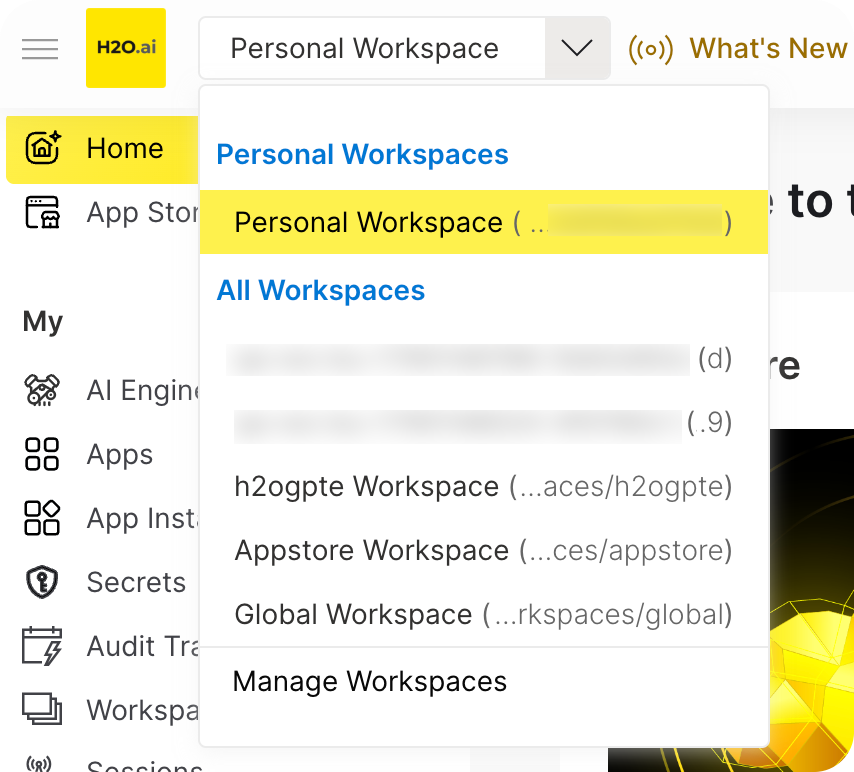
To get access to a workspace, ask your administrator or the workspace owner. See Identity and Access Management for how roles and role bindings are managed.
What your workspace role lets you do
Each workspace role grants read access, write access, or both, to the app instances in that workspace.
| Action on an app instance | Workspace access needed |
|---|---|
| Run an app in the workspace | Write |
| See an instance in lists and open its details | Read |
| Open the app's UI | Read |
| Update, suspend, resume, or terminate an instance | Write |
If your administrator allows public instances, anyone can open the UI of a PUBLIC instance, without workspace access.
Viewing instance logs and changing auto-suspend settings don't depend on your workspace role. The instance rules below still apply.
Your administrator sets which roles are available, for example a workspace owner role or a read-only role. By default, your personal workspace gives you full read and write access.
Apps
Apps are shared across the whole App Store. Who can see and run an app depends on its visibility:
| Visibility | Who can see it | Who can run it |
|---|---|---|
PRIVATE | Only the app owner, on the My Apps page | Only the app owner |
ALL_USERS | All users with full access, on the App Store page | Users with full access (ON_DEMAND apps). For MANAGED apps, the owner runs one shared instance and others open it with Visit. |
PUBLIC | Anyone, even without signing in | Same as ALL_USERS |
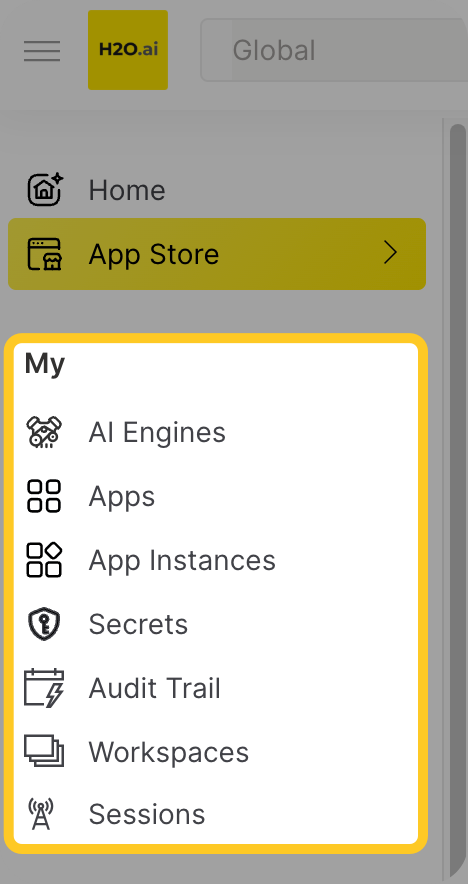
To open the My Apps page, select My > Apps in the left menu.
A few more rules apply:
PUBLICapps require your administrator to enable public mode. Without it,PUBLICapps behave likeALL_USERSapps.- Only the app owner can update, delete, or download an app. They can do this on the My Apps page or with
h2o app .... - Any user with full access can import new apps.
PRIVATEapps are typically experimental versions created withh2o bundle deploy.ALL_USERSapps are typically created withh2o bundle import.
See CLI for details on managing apps.
App instances
Every instance belongs to a workspace. To see or manage an instance, you need the workspace access listed above, and the instance's visibility must allow it:
| Visibility | Who can see it and open its UI |
|---|---|
PRIVATE | Only the instance owner |
ALL_USERS | All users with full access who can read the instance's workspace |
PUBLIC | Like ALL_USERS. If your administrator allows public instances, anyone with the URL can also open the app's UI. |
A few more rules apply:
- Only the instance owner and administrators can update, suspend, resume, or terminate an instance. The owner also needs write access to the instance's workspace.
- The app owner can see the metadata, status, and logs of their app's instances, even
PRIVATEones, to help with troubleshooting. To see metadata and status, they need read access to the instance's workspace. This doesn't give them access to the app's UI or any write access. - The instance owner chooses an instance's visibility when running the app: Run starts an
ALL_USERSinstance, and Run In Private starts aPRIVATEone. To change it later, useh2o instance update <id> -v <visibility>. The App Instances page (select My > App Instances in the left menu) shows each instance's visibility.
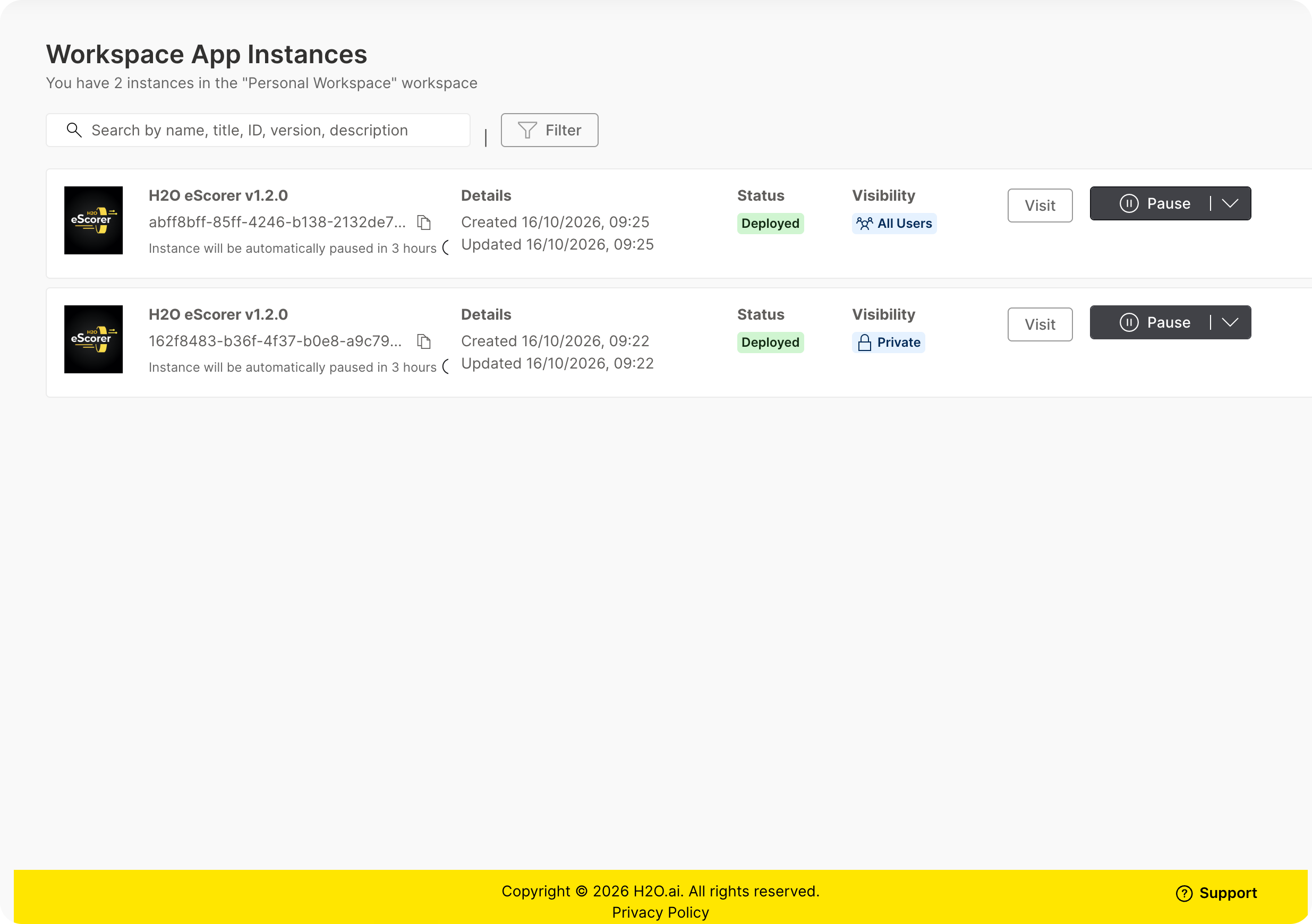
Example: Ana and Ben are both members of the fraud-team workspace. Ana runs an app there twice: once as
PRIVATE and once as ALL_USERS. Ben sees only the ALL_USERS instance. Carla isn't a member of fraud-team,
so Carla sees neither instance, even though one of them is ALL_USERS.
See CLI for details on managing app instances.
Secrets
Secrets aren't part of a workspace. Access depends on the secret's visibility:
- Users with full access can see all
ALL_USERSsecrets and their ownPRIVATEsecrets. - Only the user who created a
PRIVATEsecret can update or delete it. ALL_USERSsecrets and app-scoped (APP) secrets can only be created, updated, or deleted by administrators. Regular users can't seeAPPsecrets. See App-scoped secrets.
See CLI for details on managing secrets.
Tags
Tags aren't part of a workspace:
- All users with full access can see all tags and which apps they are assigned to.
- Only administrators can create tags.
- A tag can be assigned to or removed from apps only by users who have one of the tag's admin roles. If the tag has no admin roles, any user with full access can assign it.
See CLI for details on managing tags.
Restricted access (visitors)
Your administrator can restrict what some users can see. These users are called visitors. Visitors
only see PUBLIC apps and the apps that an administrator has made available to their role through tags. They can't import apps,
see tags or secrets, or view instance logs. Workspace rules apply to visitors in the same way as to other users.
If you can't see an app you expect, ask your administrator. See Visitors in the admin guide for the full rules.
Administrators
Administrators can manage all apps, instances, tags, and secrets through the admin pages and the h2o admin CLI,
across all workspaces. They still can't open the UI of another user's PRIVATE instance, or act on behalf of
another user. See Administrators in the admin guide.
- Submit and view feedback for this page
- Send feedback about AI App Store to cloud-feedback@h2o.ai